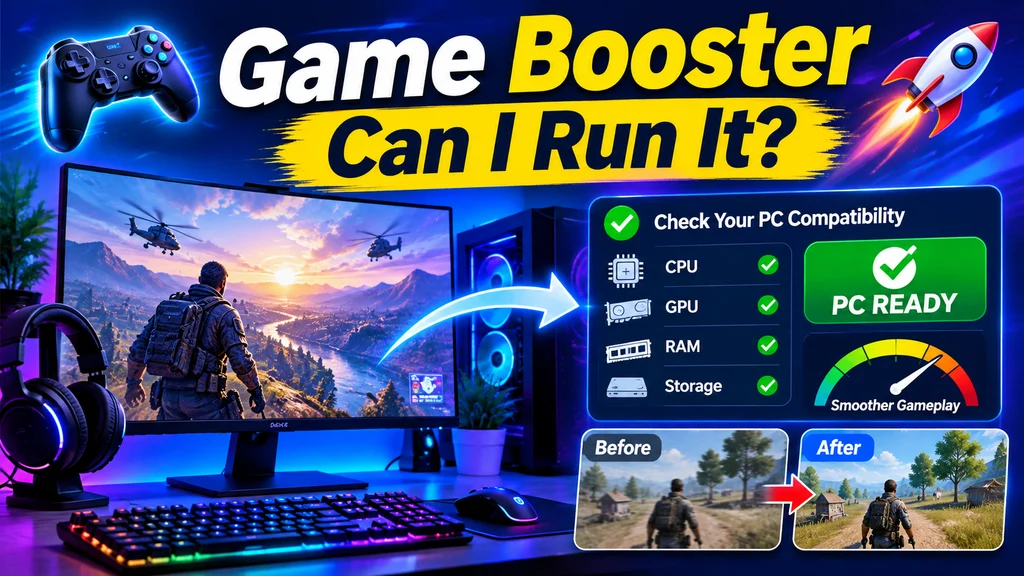
Getting a computer ready for modern games involves more than installing the latest graphics card. Background applications, outdated drivers, limited memory, and hardware compatibility can all influence gameplay. A Game Booster can help users manage selected system resources, while checking Can I run it helps determine whether a computer meets the requirements of a particular game. Understanding these tools can help gamers avoid unnecessary upgrades and make better use of their existing hardware.
Prepare Your Computer for Demanding Games
Modern games often require considerable processing power and memory. At the same time, Windows may continue running browsers, messaging applications, update services, and other background programs.
A Game Booster is designed to help manage selected background activity and provide convenient access to gaming-related optimization settings. Some applications can identify unnecessary programs, close selected processes, and prepare the computer before launching a game.
For example, a player using an older desktop might notice that gameplay becomes less responsive when several applications are open. Closing unnecessary programs may free up some resources and improve the overall experience, depending on the system’s condition.
Practical Benefits of Using a Game Booster
- Background management: Close selected applications that are not needed during gaming.
- Resource optimization: Reduce unnecessary memory and processor usage when background programs are consuming resources.
- Convenient controls: Access gaming-related settings through one application.
- Performance monitoring: Examine available CPU, GPU, RAM, and temperature information.
- Better preparation: Organize your system before starting demanding games.
Some gaming utilities also offer driver management, startup controls, and game-related maintenance features. These options can make routine PC maintenance easier.
However, a Game Booster cannot guarantee higher FPS. If your graphics card is already operating at its limit, closing background applications may produce little improvement.
Can I run it? Check Before Installing a New Game
One of the most common questions among PC gamers is whether their computer can handle a particular game. Asking Can I run it before downloading a large installation or purchasing a new title can help prevent unexpected problems.
Game compatibility checking involves comparing your computer’s specifications with a game’s published minimum and recommended requirements.
Important specifications generally include:
- Processor model and processing capability.
- Graphics card model and available graphics memory.
- Installed RAM.
- Windows version and DirectX compatibility.
- Available storage space.
Online compatibility tools can help collect this information and compare it with supported game requirements.
Why Can I run it Checking Is Important
Avoid unnecessary purchases: Check whether your hardware meets a game’s requirements before spending money.
Identify weak components: Understand whether your processor, graphics card, or memory may limit compatibility.
Plan upgrades: Determine which hardware components deserve attention before investing in a new PC.
Find suitable games: Discover titles that are more appropriate for your existing computer.
Save time: Review compatibility before downloading games that require significant storage space.
Minimum Requirements Versus Recommended Requirements
Not every compatibility result means the same thing. Minimum specifications generally describe the basic hardware needed to run a game, whereas recommended specifications provide a stronger target for a more comfortable experience.
For example, a computer might meet a game’s minimum graphics requirements but struggle when running high-resolution textures or demanding visual effects.
This is why checking Can I run it should be considered an important first step rather than a guarantee of smooth gameplay.
Actual performance also depends on game optimization, graphics settings, driver versions, processor temperatures, and background activity.
Use Both Tools to Investigate Gaming Problems
Imagine you want to install a demanding open-world game on an older computer.
First, check your processor, graphics card, and available RAM against the game’s requirements. This helps establish whether your system is suitable for the title.
Next, review the programs running in the background. A Game Booster may help identify selected applications that can safely be closed before gameplay.
After launching the game, monitor its FPS and hardware temperatures. If performance remains inconsistent, try changing individual graphics settings such as shadows, resolution, and visual effects.
Comparing results under similar conditions makes it easier to understand whether the changes are helping.
Avoid Risky PC Optimization Methods
Not every optimization suggestion is safe. Disabling unfamiliar Windows services, deleting system files, or making unnecessary Registry changes can create additional problems.
Choose trusted software that explains its functions and allows you to review suggested changes. Download applications from official sources and keep important drivers updated.
It is also useful to monitor CPU and GPU temperatures during longer gaming sessions because overheating can reduce system performance.
Final Thoughts
A better gaming experience starts with understanding your computer and using suitable optimization tools. A Game Booster can help manage selected background processes and simplify gaming preparation, while Can I run it compatibility checking helps determine whether your hardware meets a game’s requirements.
Using both approaches provides a practical starting point for troubleshooting, choosing suitable games, and planning future upgrades. With sensible system management and realistic expectations, you can get more value from your existing gaming PC.